
A careful monitor height setup can reduce the need to crane your neck. It will not replace movement, and it is not a treatment for injury.
Most desk strain starts with a simple mismatch. The screen sits too low, too high, or off to one side. You then hold your head in a small tilt for hours. A good monitor height setup puts the screen where your eyes already look. Your neck should not have to chase the picture.
Why a monitor height setup protects your neck
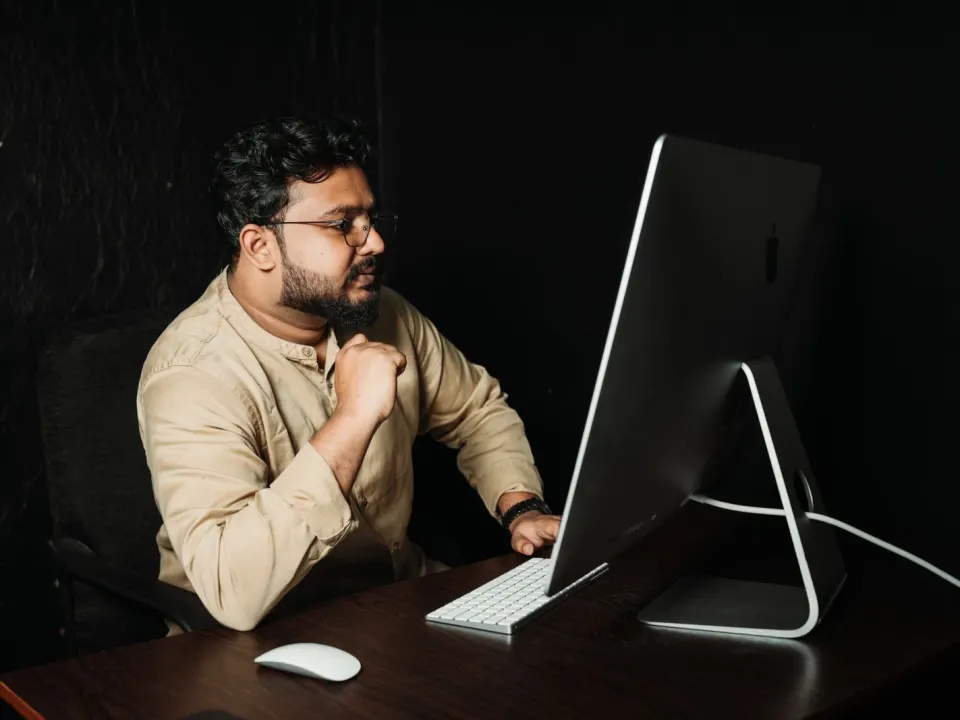
The UK Health and Safety Executive (HSE) describes a simple starting point. The top of the screen should sit level with your eyes. The screen should sit about an arm's length away. The computer should face you, not sit at an angle that turns your trunk.
US workplace guidance from NIOSH and MedlinePlus says the same thing in different words. Fit the job to the person. Keep the head balanced over the trunk. Avoid a long stretch of looking up or looking sharply down.
That advice is about comfort and strain, not about a medically perfect pose. Holding any one shape all day still loads the same tissues. The screen change simply removes an extra demand. You should still change task and posture often.
Neck discomfort after desk work has many causes. A low laptop is a common one. So is a monitor parked on a stack of papers that is too tall. Glare can also make you lean in. Fix the obvious mismatch first. Then judge whether you still need a workstation review or clinical care.
HSE notes that poorly designed display work can lead to pain in the neck, shoulders, back, arms and hands. It can also add fatigue and eye strain. The cause is not always one gadget. It is often hours of the same reach, plus too few breaks.
How to complete a monitor height setup in five minutes
Sit as you actually work. Open a typical document, not a blank desktop. Sit close enough that your upper arms can hang loosely while you type. Then follow this order.
- Set the chair and keyboard first. HSE advises a keyboard just below elbow height, with shoulders relaxed. If you raise the screen before the seat, you will chase the wrong target.
- Place the main screen dead ahead. Your nose should point at the centre of the work you do most. Do not angle the monitor to match a window if that makes you twist.
- Set distance next. Start at about an arm's length. You should read without leaning your chest toward the desk. If the text is small, enlarge it. Do not pull the screen into your face.
- Match the top of the screen to your eyes. Your gaze should fall slightly downward into the middle of the display. If you look up to see the menu bar, the screen is too high.
- Tweak tilt and glare last. A small backward tilt can help. Then move lamps or blinds so you are not fighting a bright patch.
| Check | Starting point | Fail sign |
|---|---|---|
| Position | Screen centred on your body | You turn your head toward a side monitor all day |
| Distance | About an arm's length | You lean in, or you cannot read without squinting |
| Height | Top of screen level with your eyes | Chin tips up, or you look sharply down at a laptop |
| Gaze | Slightly downward into the middle of the screen | You crane to see the top or hunch to see the bottom |
| Glare | Screen at right angles to bright windows where you can | You tilt your head to dodge reflections |
A monitor arm, a stable riser, or a few firm books can all raise a screen. The stack must not wobble. Leave cable slack so the display cannot tip. If your desk is too high and your shoulders shrug while you type, fix the chair and keyboard before you chase millimetres of screen height. The wider desk ergonomics checklist covers that order in more detail.
Laptops, glasses and two screens
A laptop cannot put its keys at elbow height and its screen near eye height at the same time. For short email checks, that compromise is common. For longer writing or data work, raise the laptop on a stable stand. Add a full-size keyboard and mouse. HSE makes this point for portable devices used for prolonged work.
If you wear bifocals or varifocals, a screen at strict eye height can force your chin up. You then look through the wrong part of the lens. Lower the display a little. Bring it slightly closer only if you can still sit back. Ask your optician how your lenses are meant to work at a desk. UK DSE rules also describe eye tests for qualifying users. That is an employment issue, not a DIY diagnosis.
Two monitors need a plan. If one screen does most of the work, park it in the centre. Put the second screen beside it and turn your chair when you need it. If you split time evenly, place the pair so the gap sits in front of you. Do not sit square to one screen and twist toward the other for hours.
Phones and tablets create a different height problem. People often drop the chin to a lap or a low desk. Raise the device, or bring it nearer to eye height for longer reading. Then put it down and look into the room. A low phone can undo a careful desktop setup in one long call.
Common height mistakes and better fixes
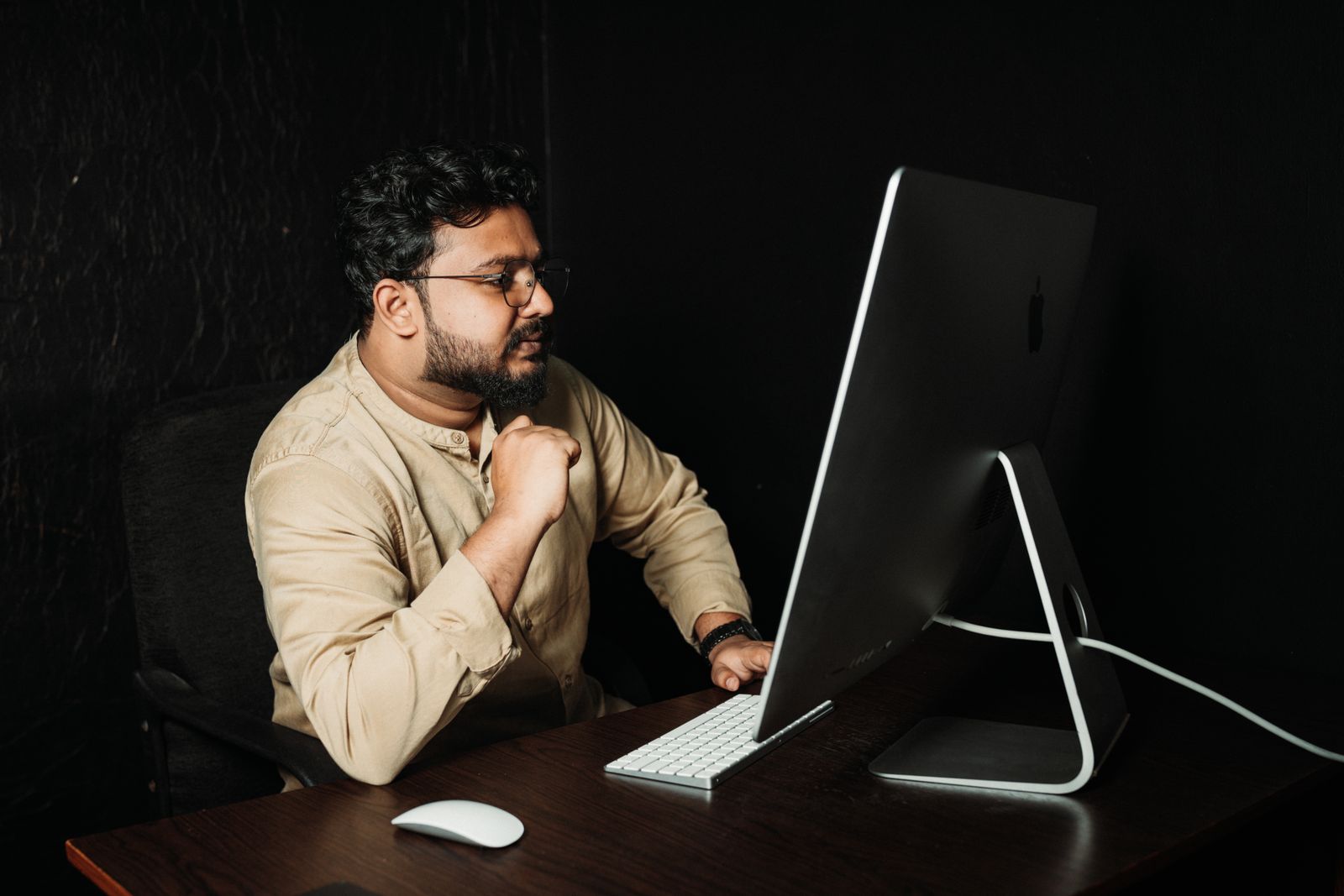
Raising the screen on a laptop while you still type on its keys is a frequent miss. Your shoulders then shrug toward a high keyboard. Separate the jobs. The keys stay low. The picture goes up.
Another miss is using a huge display as if it were a small one. A large screen may need to sit a little farther away. You should still see the top without tipping your head back. If the top edge is well above your eyes, lower the whole display or sit farther back and enlarge the text.
Do not tape a paper note to the top bezel if you copy from it all day. Put the document on a holder beside the screen. HSE recommends this so your eyes and neck are not travelling from desk to display hundreds of times.
If you hot-desk, repeat the five-minute check each time the furniture changes. A dock that worked on Monday can sit too low on a thinner desk on Tuesday. Keep a small riser or a known stack of books in your bag if your sites vary.
Move, then decide if you need more help
HSE favours short, frequent changes of activity over one long break at lunch. Looking away from the screen is part of that. So is standing up. A well placed monitor still needs a body that is not glued to the chair. Pair the setup with short desk stretches and with movement snacks during the work day.
If you use a height-adjustable desk, repeat the height check when you stand. The screen-to-eye relationship changes when you rise. The standing desk transition plan explains how to add upright time without swapping neck strain for sore feet.
Seek a GP in the UK, or a primary care clinician in the US, if neck pain lasts, spreads into an arm, or comes with numbness, weakness, or headaches that worry you. After a fall, crash, or sudden severe pain, use urgent care. A physiotherapist or physical therapist can also assess desk-related strain. Occupational health can review a workplace when symptoms keep returning.
Do not treat a new monitor arm as a cure for night pain, fever, unexplained weight loss, or trouble controlling your legs. Those are reasons to seek clinical advice, not another millimetre of height.
Height landmarks you can measure today
Sit tall in your usual chair. The top of the active screen area should land near eye height, give or take a little based on bifocals or comfort. Start about an arm’s length away, then fine-tune so you are not leaning into small text — enlarge font before craning forward.
For dual monitors, put the primary screen centred; angle the secondary. If both are equal, centre the join and keep tops level.
Laptop-specific height fixes
A laptop alone is usually too low. Raise it on a riser and add an external keyboard and mouse. Without those, a higher laptop often shrugs the shoulders while you type.
Recheck after chair changes
Any new chair height changes eye line. Recheck monitor height the same day. Take a 20-second distant gaze every 20 minutes while you adapt.
Making monitor height setup survive a busy week
Attach monitor height setup to existing breakpoints and recheck setup whenever you change chairs or rooms. Keep a minimum version for meeting-heavy days.
Persistent numbness, night pain or weakness needs clinical or occupational-health input rather than endless self-tweaks.
Frequently asked questions
Should the top of the monitor sit exactly at eye level?
How far away should my screen be?
Can a laptop on a stack of books count as a proper setup?
Do I need an expensive monitor arm?
Will a better screen height cure my neck pain?
Sources
- 1. Good posture when using display screen equipment
- 2. Working safely with display screen equipment
- 3. Ergonomics and musculoskeletal disorders
- 4. Ergonomics
- 5. Neck pain
Guidance changes. Figures were checked against the sources above at the time of review; always confirm current advice with your GP, pharmacist or clinician.
Image credits
- Photo: Photo by Andrea Piacquadio on Pexels / Openverse
- Photo: Photo by Pixabay on Pexels / Openverse
Was this useful?
Anyone can react — no account needed.



Discussion
0 comments · Name and email only · Email is never shown